
Zoom Integration for ZentroBiz
Connect Zoom to schedule meetings and initiate Zoom Phone calls directly inside ZentroBiz.
Overview
The ZentroBiz Zoom integration connects your firm's Zoom account via OAuth 2.0, enabling staff members to create meetings, send SMS messages through Zoom Phone, and initiate outbound calls — all from within the ZentroBiz platform.
Each staff member connects their own Zoom account using secure OAuth 2.0 authorization.
Adding the Zoom Integration
Follow these steps to connect your Zoom account to ZentroBiz.
Troubleshooting
- Authorization fails: Ensure pop-ups are not blocked by your browser. Try disabling browser extensions temporarily.
- Status does not show "Connected": Refresh the page. If the issue persists, disconnect and reconnect.
- Zoom account not recognized: Verify you are signing in with the correct Zoom account associated with your organization.
- "Insufficient permissions" error: Your Zoom admin may need to pre-approve the ZentroBiz app in the Zoom Marketplace.
- Connection drops after password change: If you change your Zoom password, you may need to reconnect from ZentroBiz Settings.
Sign in to your ZentroBiz account with your staff credentials.
Go to Staff → Settings → Communications from the left sidebar.
Locate the Zoom section and click the "Connect Zoom" button.
You will be redirected to Zoom. Sign in and authorize ZentroBiz to access your account.
Once authorized, you will be redirected back to ZentroBiz. Your status will show "Connected".
Using the Zoom Integration
Three core capabilities available once your Zoom account is connected.
Create a Zoom Meeting
Expected Result: A Zoom meeting link is generated and attached to the record. The link can be shared with clients via email or SMS.
- Open a client record, appointment, or workflow task.
- Click the "Create Zoom Meeting" button in the communication panel.
- Set the meeting topic, date, and time.
- Click "Schedule" to generate the meeting link.
Removing the Zoom Integration
You can disconnect Zoom from ZentroBiz or remove the app from the Zoom Marketplace.
Option ADisconnect in ZentroBiz
- Go to Staff → Settings → Communications.
- Locate the Zoom section.
- Click "Disconnect".
- Confirm the disconnection when prompted.
Option BRemove from Zoom Marketplace
- Sign in to the Zoom App Marketplace.
- Go to Manage → Installed Apps.
- Find "ZentroBiz" in the list.
- Click "Remove" and confirm.
What Happens After Removal
OAuth tokens are immediately revoked and cannot be reused.
Stored Zoom credentials and tokens are permanently deleted from ZentroBiz.
Previously created Zoom meetings remain active and accessible via their existing links.
You can reconnect at any time by repeating the setup steps above.
Data & Security
Your data is protected with enterprise-grade security at every layer.
All Zoom connections use the OAuth 2.0 protocol. ZentroBiz never stores or accesses your Zoom password directly.
All data transmitted between ZentroBiz and Zoom is encrypted in transit using TLS/HTTPS.
OAuth access tokens and refresh tokens are encrypted at rest using AES-256 encryption before being stored.
ZentroBiz requests only the minimum Zoom API scopes required: meeting creation, phone SMS, and phone calling.
ZentroBiz does not request or have access to your Zoom meeting recordings at any time.
ZentroBiz does not request or have access to your Zoom Phone voicemail messages or transcriptions.
More in Scheduling & Team.
Appointment Scheduling
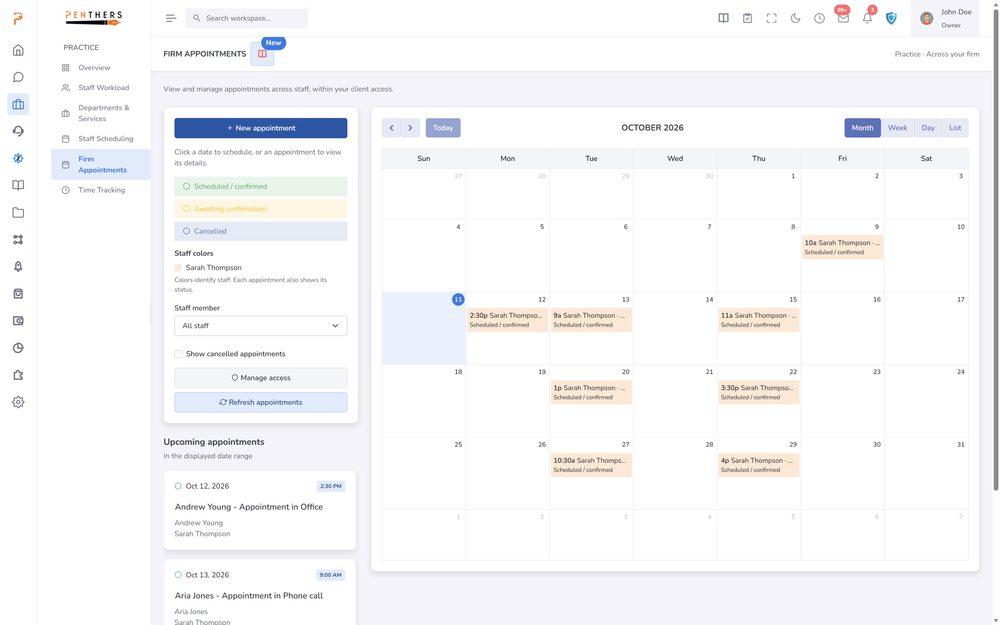
Calendar integration, reminders, and availability management. Let clients book appointments online while you stay in control of your schedule.
Learn more ›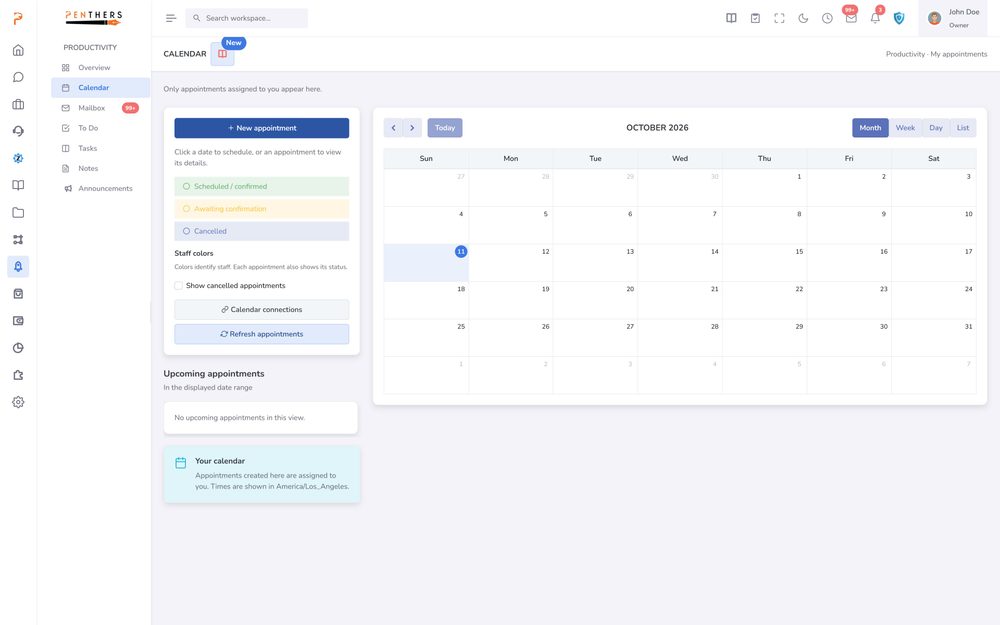
Calendar & Scheduling
Full-featured calendar with Google and Outlook sync, client-facing booking, embeddable widgets, multi-location support, automated reminders, and AI auto-booking — purpose-built for…
Learn more ›Microsoft Teams Integration
Real-time notifications, task updates, and seamless communication with your team. Keep everyone informed without leaving Teams.
Learn more ›See Zoom Integration in your firm.
A 20-minute demo tailored to your workflow, or start a 14-day trial. Submitting a request does not charge a card.